Your motherboard ships, set up to boot with anything. That’s the job of the default settings: work with every CPU, every RAM kit and every graphics card on the first boot.
Now default settings work completely fine. But the beauty of having a customized workstation is that you can tune it exactly the way you like.
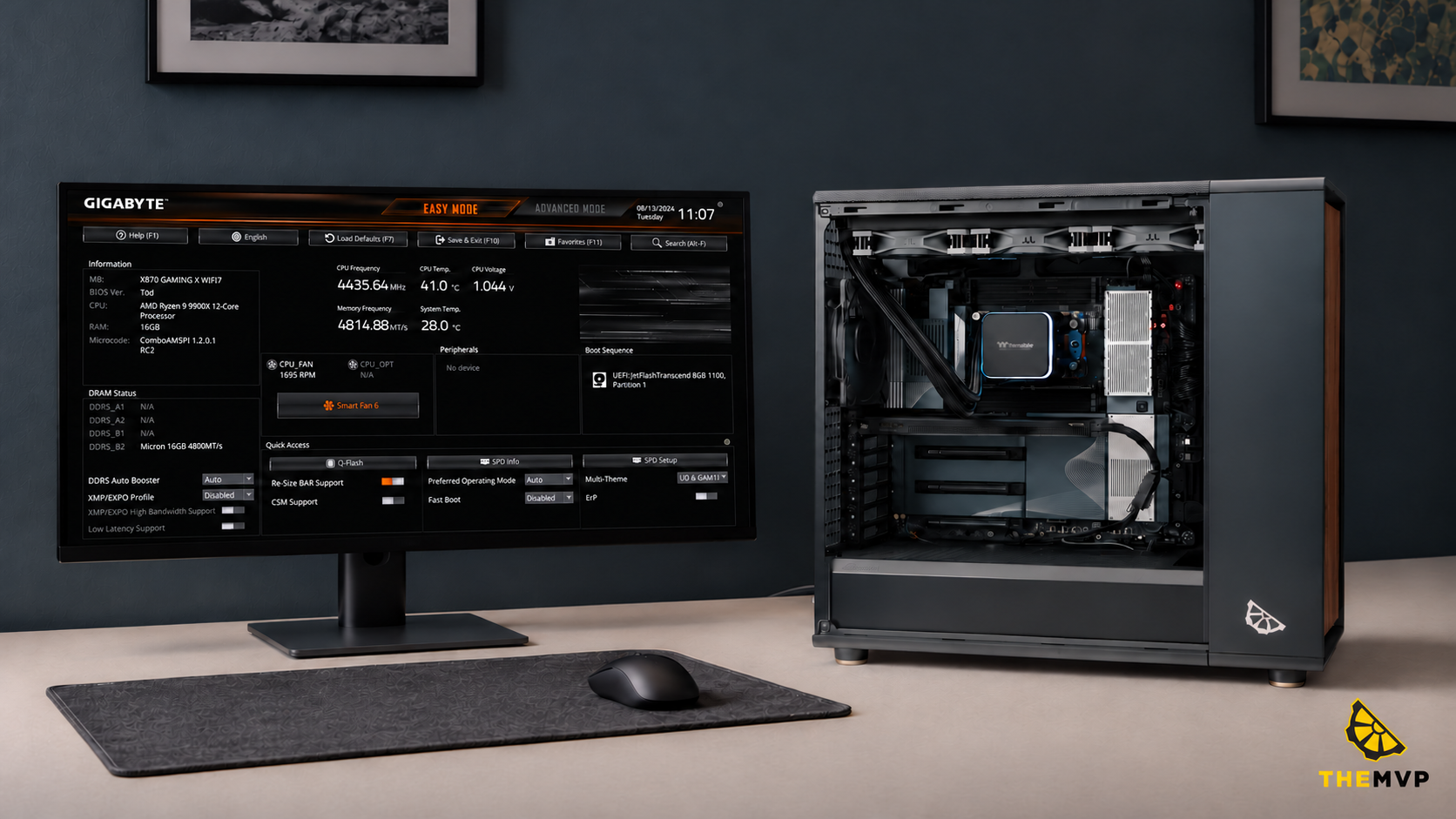
Getting in: restart and tap Delete as the PC boots (F2 on some boards). Most boards open in an easy mode first. Switch to Advanced mode (F7 on ASUS and MSI), where all five of these live. (Your keys may be slightly different, so just google your motherboard name.)
One rule before we start. If a setting isn’t on this list and you’re not sure what it does, leave it where it is. And find Load Optimized Defaults before you change anything. It’s usually on the Exit or Save & Exit tab, and it’s the undo button for everything below.
1. Resizable BAR
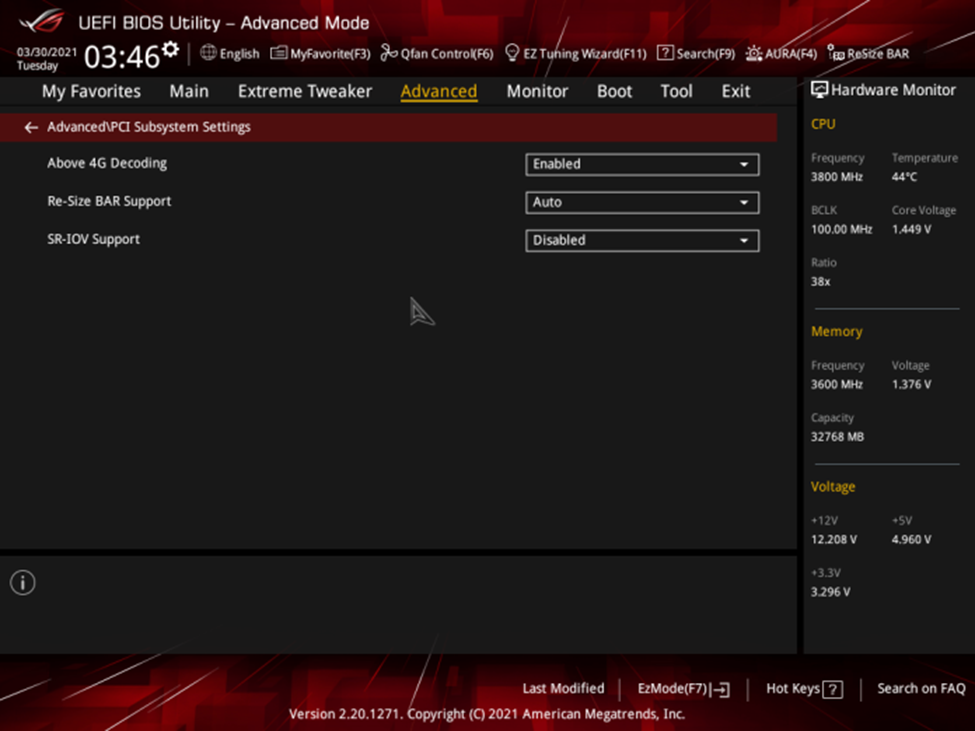
Your CPU feeds your graphics card a constant stream of textures, geometry and shaders. Without Resizable BAR, it can only see the card’s memory through a 256 MB window at a time. On a 16 GB card, that’s a tiny slice, so big transfers get chopped into lots of small ones.
ReBAR opens the whole thing up, so all of it can be accessed at once.
Most games gain a few frames, and if you do any sort of 3D workflow where you’re constantly loading up textures, expect a decent bump too.
Where to find it: usually in the Advanced or PCI settings menu. Three things need to be set: Above 4G Decoding on, Re-Size BAR Support on, and CSM off. You’ll also need an RTX 30 / RX 6000 series card or newer.
2. XMP / EXPO
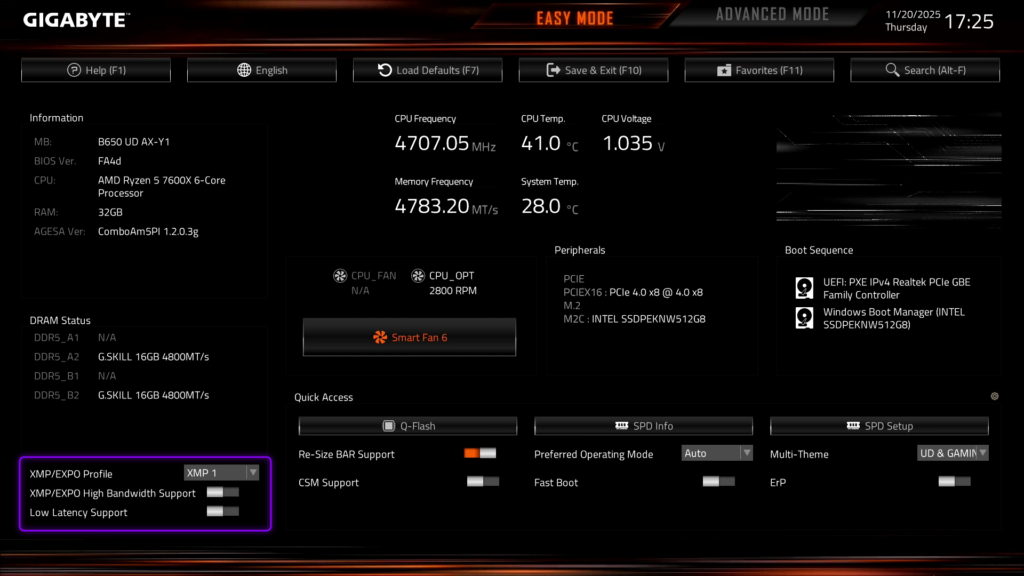
The speed printed on your RAM box isn’t the speed it runs at out of the box. DDR5 starts at a safe base speed, usually 4800 MT/s, because the board has to boot with any stick you put in it.
The speed you paid for is stored on the stick as a profile. XMP is Intel’s name for it, EXPO is AMD’s, and many AMD boards will happily run XMP kits too. Turn the profile on and your RAM runs at its best rated speed and timings.
Where to find it: usually right on the BIOS home screen, as a single toggle. Pick Profile 1.
The first boot after you turn it on can sit on a black screen for a minute or two while the board trains the memory. That’s normal. Don’t pull the plug.
3. Fan curves
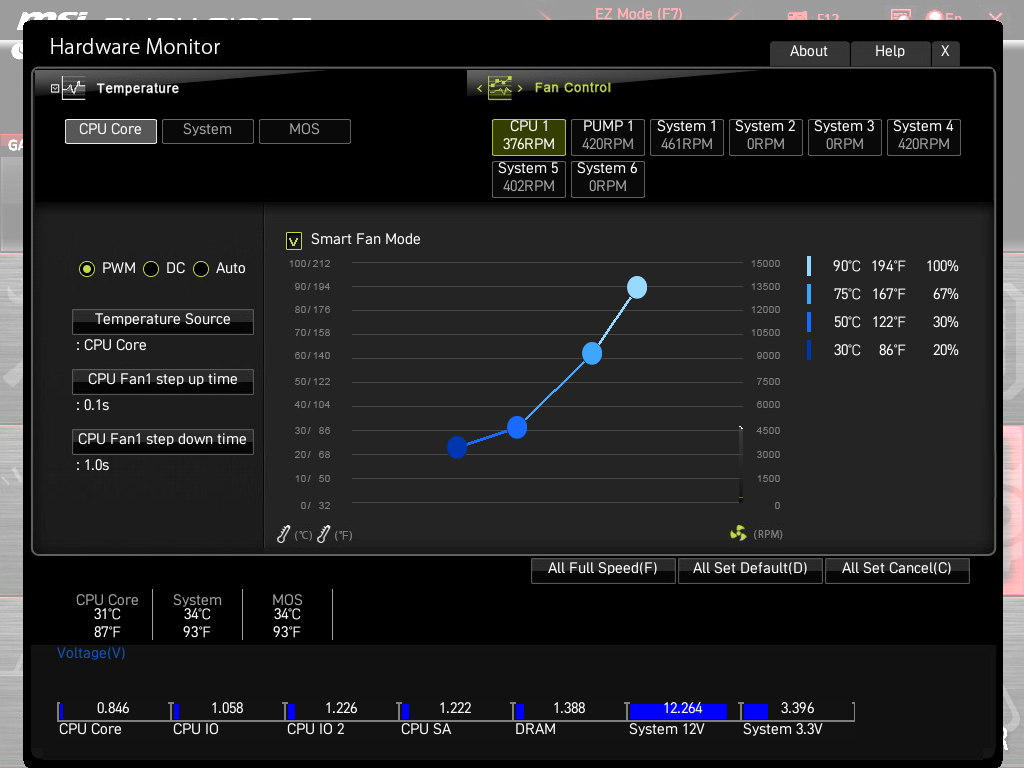
You can tune every fan in your case, to cut noise or to run cooler.
Then the fan curve: a graph of temperature against fan speed. A sensible starting point for the CPU fan is quiet up to about 50°C, then a steady ramp to full speed by about 80°C. Tweak from there.
One small setting makes a big difference to noise. Look for a step-up / step-down time or smoothing option (the name varies by board). Without it, fans rev up every time you open a browser tab.
Where to find it: under Hardware Monitor, Q-Fan Control (ASUS) or Smart Fan (Gigabyte, MSI).
4. PBO (AMD) and power limits (Intel)
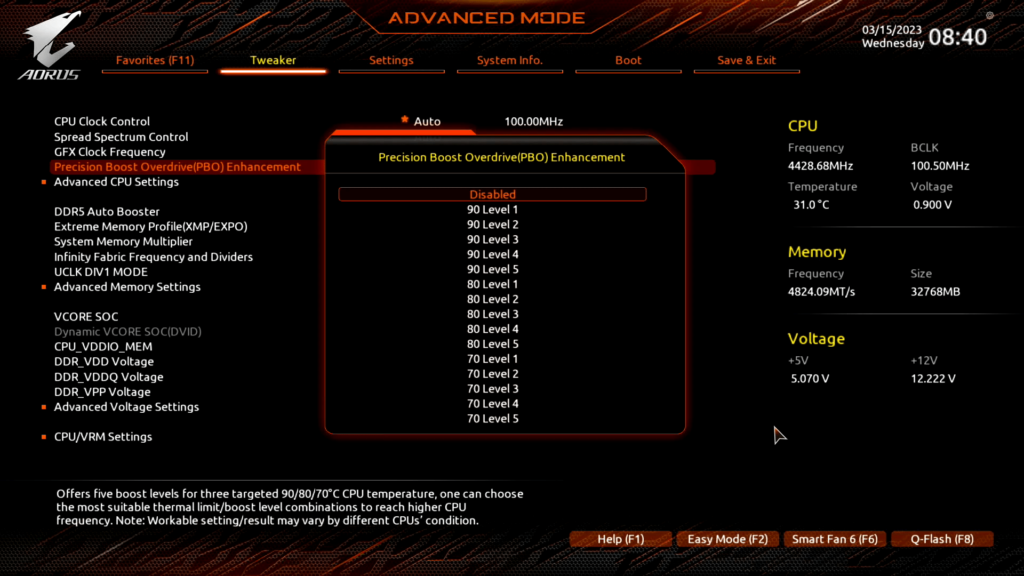
Your CPU boosts as high as its power, current and temperature limits let it. These settings move those limits, and they work differently on AMD and Intel.
On AMD Ryzen, it’s Precision Boost Overdrive (PBO). Turn it on and the chip can draw more power and hold its boost for longer, as long as your cooler keeps up. Expect a few percent in long multi-core jobs like renders and exports, and naturally it generates more heat, but you might find some welcome results.
On Intel, the board sets the power limits, and for a while many boards shipped them close to unlimited. After stability problems with 13th and 14th Gen Core chips, Intel asked board makers to add an Intel Default Settings profile and make it the default. If you’re on one of those chips, update your BIOS and pick that profile.
Where to find it: PBO sits in the overclocking or CPU tweaker menu. On many boards, the Intel profile prompt shows up the first time you enter the BIOS after an update. Otherwise, look under CPU power or cooler settings.
5. Virtualization (SVM / VT-x)
This one won’t make anything faster. It’s the setting people go hunting for the day something refuses to install.
It lets your CPU run virtual machines, and a lot of everyday software now leans on it: WSL and Docker for developers, Android emulators, and some of Windows 11’s security features. Some boards ship with it off.
Where to find it: under CPU configuration. AMD calls it SVM Mode; Intel calls it Intel Virtualization Technology or VT-x. Turn it on, save, reboot.
Before you hit save
Change one setting at a time, then use the PC before touching the next one. If something starts acting funny, you’ll know exactly which setting did it. And if you lose track completely, Load Optimized Defaults puts everything back where it started.
None of these five takes more than a minute to change. The hard part is knowing which ones matter for your parts and your work, and leaving the rest alone.
If you’d rather skip that part: we set most of these before a theMVP build leaves our workshop, and tune them to the parts inside it, so you don’t have to.
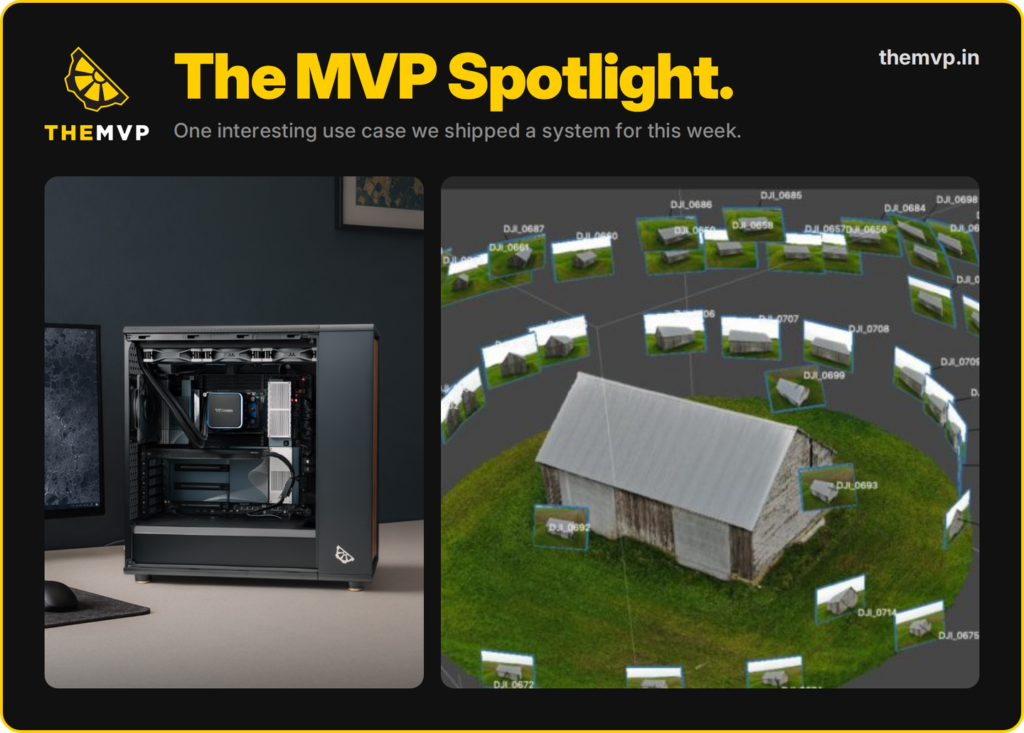
This week’s system went to a photogrammetry lab in Hyderabad. They fly drones over a site, shoot thousands of overlapping photos, and stitch them into a 3D model you can actually measure. Some of their work points the other way: up, into spacetech.
Every photo gets matched against its neighbours, then turned into a depth map. Thousands of images, hours of processing, and the machine can’t flinch halfway through.
| PART | WHAT IT DOES FOR THEM |
|---|---|
| Threadripper 9980X, 64C / 128T | Photo alignment and meshing spread across every core. |
| RTX PRO 4000 Blackwell, 24 GB | Depth maps on the GPU, with enough VRAM for big image batches. |
| 64 GB DDR5 ECC RDIMM | For maximum reliability on mission critical runs. |
| 2 TB Gen5 NVMe + 10 TB IronWolf Pro | Live projects on fast storage, raw archives on the big drive. |
| Fractal North XL, 360 mm liquid cooler | Quiet and Elegant enough to sit in a workspace. |
Working on something that needs high compute? Talk to us at themvp.in.